TTIC · Enterprise Claude
Ask → Delegate → Automate
That's the whole model. Your Claude access includes Claude Desktop, where three ways of working live side by side — Chat to think it through together, Cowork to hand off a task and get back a finished file, Code to automate a chore and keep the recipe. Each demo below hands you an input file and ten minutes, and leaves you with something real. Put this page on one half of your screen and Claude Desktop on the other.
First time? Start with Sign in once below — you'll need your UChicago CNetID, not your ttic.edu account, and that trips almost everyone exactly once.
Ten minutes each, in order
The three demos
-
Demo 1 · Chat
Read the unreadable
Hand Claude an 80-page research survey. Get the map of the territory in minutes — then make it cite its sources.
"Help me with this, right now."
-
Demo 2 · Cowork
Abstracts to spreadsheet
Fifteen paper abstracts become one screening-ready literature matrix in Excel. From a single instruction.
"Go make me the spreadsheet."
-
Demo 3 · Code
Kill a recurring data chore
Twelve messy monthly files become one clean master — plus a script that does next month in seconds.
"Do this, and let me redo it every month."
Sign in once — the confusing part
Sign in with your UChicago CNetID account (yourname@uchicago.edu) — not your ttic.edu Google account. TTIC's Claude runs on the University of Chicago's plan, so the whole sign-in is UChicago: UChicago email, UChicago login page, Duo. That's normal — you're in the right place.
Never used Claude at UChicago before? The license is free for UChicago accounts, but you may have to turn it on once. Follow Request Access to Claude Enterprise (a couple of minutes through the University's MySailPoint portal), then come back and sign in.
- Open Claude Desktop (Start menu → type "Claude"). Don't have it? Get it at claude.com/download. A "Claude for Windows" welcome screen? Click Get started.
-
Type your whole @uchicago.edu email, then click Continue with SSO. Here's the tricky part: the Continue with SSO button only appears after you finish typing the full
@uchicago.eduaddress — and it is not "Continue with email" (even though you just typed an email), and not "Continue with Google". SSO is the University login.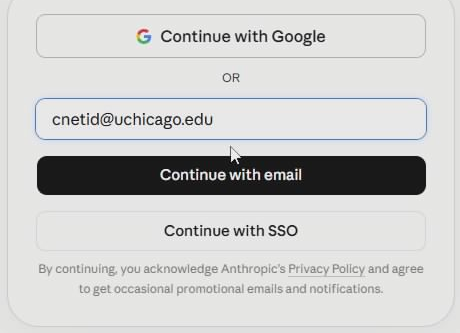
Type the full
@uchicago.eduaddress and Continue with SSO appears — click that, not "Continue with email" and not "Continue with Google". -
On the University of Chicago page that opens in your browser, sign in with your CNetID and password, then approve the Duo prompt.
-
The browser then asks to hand you back: a small box says it's trying to open Claude. Tick Always allow, then click Open — Claude comes to the front, signed in. (Still staring at the Sign In screen instead? Close Claude, open it again, and repeat from step 2 — the second pass sticks, and Duo won't ask again.)
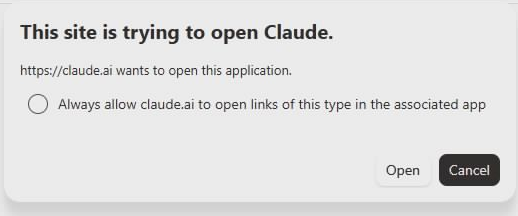
The hand-back. Always allow skips this box next time; Open finishes the sign-in.
-
Check the bottom-left corner of Claude: your name with University of Chicago Enterprise next to it. If it's there, you're done — it remembers you for about a month; when the University session expires and you land back on the Sign In screen, just repeat steps 2–4.

Bottom-left of Claude — this line is the whole test.
Corner doesn't say University of Chicago Enterprise?
You're on a free personal account — this happens when you sign in with ttic.edu or the Google button. Your work isn't covered by the University's privacy contract there. Click your name (bottom-left) → Log out, then sign in again with your @uchicago.edu email.
No CNetID, or the password won't take? Ask TTIC IT — it's a University credential, and they'll point you to the right desk.
Then, two quick checks
- Look at the message box in Claude: it should offer Chat and Cowork, with Code at the top of the sidebar. Cowork greyed out with a note about a "modern installer"? Your install is an older one — reinstall from claude.com/download (details); you'll stay signed in. If you get stuck, do Demo 1 first — Chat always works — and come back.
- Worth knowing: Cowork and Code live in the desktop app. In a browser, claude.ai gives you Chat only — so Demos 2 and 3 won't work from a browser tab.
And on privacy: on the University's enterprise plan, your conversations and files are covered by the University of Chicago's contract with Anthropic — they're never used to train models and stay private to the University's workspace. That's what the corner check above confirms, and it covers TTIC users on the plan. For regulated data (student records, health information, personal data), check UChicago's AI guidance or your data steward first.